|
I told you that DizzyAGE editor uses tiles to create the game map and that it alows you to set various properties
for each individual tile placed in the world, like color, scale, etc. But visual properties are not the only properties
that can be set for tiles. There are also logic properties, used by the game's logic.
About brushes
This structure of a tile and the associated properties is called a brush.
The properties of a brush are integer numbers. Even the tile of a brush is remembered as a property,
through it's integer ID number, specified in the tile's file name.
Think of brushes like the elements used to build a house. There are bricks. Some bricks may be red and some may be white,
but they all have the tile of a brick and the blocking material of walls, through one cannot pass.
The floors look different but they may have the same blocking material, so one can walk them without falling through.
Then, there is a wooden door that has a status property telling the game if it's opened or closed.
When closed, the door brush's status is set to 1 and the visual element (the tile) will represent a closed door.
And it will have a blocking material to prevent entering or exiting the house.
When opened, the status is set to 0 and the tile looks like an opened door. The material will be different too and it will allow people to pass through.
Either the door is closed or opened, it is the same brush, but with different properties.
The objects that may be picked up, like the small key, are also brushes with special properties that will allow
the player to remove them from the world, by hideing them in the
items inventory,
and later drop them
at a different place in the map. Using special logic properties, when such an object is dropped
next to the door, it can trigger a logic response from the game that will unlock and open the door, by changing the door
brush's necessary properties.
The interacting characters or other devices present in the map are brushes too. With special properties
they can trigger logic responses from the game when the player interacts with them, by using the action key,
or by using an object from it's inventory, or even by colliding with them.
So, now that everything is a brush, you may be eager to place your first brushes on an empty map.
Placing brushes
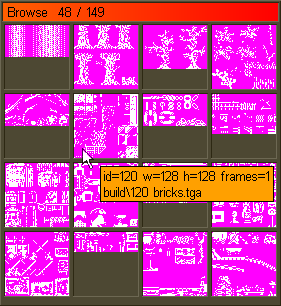
Open the editor and press [B] key to browse the loaded tiles. If the tiles folder was correctly set,
you'll be able to see a dialog with lots of tiles to choose from.
In the Tile Browser dialog, you can use [page up] and [page down] keys to navigate
through the tile pages and [home] or [end] keys to quickly jump to the first or to the last tile in the set.
All the available keys are presented in the help dialog, from the editor's
system menu.
When moving the mouse cursor over a tile you will see a tooltip with information about that tile, showing you
the ID of the tile, the size and the file name.
So choose one tile, for example the one with the ID=120, and click  the mouse on it.
A new dialog will be opened, where you can choose which part of the tile you want to use. the mouse on it.
A new dialog will be opened, where you can choose which part of the tile you want to use.
In the Mapping dialog, you press down the left mouse button at the top left position of the
rectangular area you want to select and, holding it pressed, you drag the mouse to extend the selection.
when the selection is complete, you release the mouse button. This is a standard selection procedure using the mouse.
The Mapping dialog supports individual grid [G], snap [S] and axis [A] options. You can navigate the tiles using
the [page up] and [page down] keys and you can zoom in or out with [+] and [-].
Later, you can open this dialog directly by pressing the [M] key.
Select the 16x16 pixels brick, like in the image above and click with the mouse outside the dialog area to close it.
You will see that the tile is now hooked to the mouse cursor.
Choose any place you like and press down the left mouse button .
Holding it pressed, drag the mouse to define the brush's size,
a rectangle where the selected tile will be repeated.
Then release the mouse button and your first brush is in place!
If you keep the [shift] key pressed while placing a brush, it's size will be snapped to the tile's size.
This is usefull if your tile is not multiple of 8 pixels in size to be snapped by the grid.
Now, to do it again using a different color.
Press [C] to open the Colors dialog.
|
|
Moving the mouse cursor over a color in the color palette, it will display a tooltip with the hexadecimal code of the color.
If clicking the left mouse button on the color, the dialog will close and the color will be selected.
You can use [page up] and [page down] keys to navigate through a few color palettes, but the first one is specific
to the classic Dizzy games from the old Z80 computers that could only present 16 colors. So, to keep the good old look,
you should use mostly those few colors in your game.
|
The classic Windows color browser can be opened using [shift]+[C].
Now, that you have selected a different color, place the brush again in another place on the map, like you did before.
In fact now it's a good time to play a little with those things you've learned so far, choose different tiles and colors,
place them on the map and try a little composition of your own.
Use the arrow keys to scroll the map and [+] and [-] keys to zoom in and out.
Conclusion
In this chapter you have learned about brushes, how to choose tiles and colors and how to place brushes on the map.
Next you will learn the details about each property of a brush.
|
|
|