|
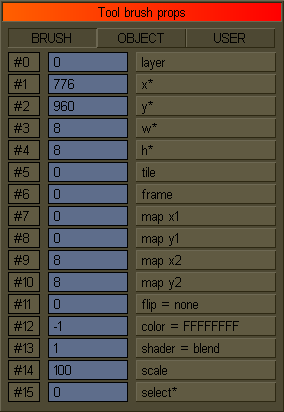
Start the DizzyAGE editor and press the [P] key.
The Brush properties will open presenting the
properties values of the current painting brush (the one hooked in the mouse cursor).
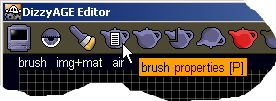
You can also use the icon from the top toolbar to open it.
There are 48 brush properties, indexed from 0 to 47 and grouped on three tab pages.
The BRUSH page contains mostly visual brush properties while the other two pages,
OBJECTS and USER, keep mostly logic brush properties.
As told before, the values of the brush properties are integer numbers.
For each property, next to the value's edit box there's a button with the property name.
For some of them, like the color or shader properties, this button can be used to browse values in a more friendly way,
than entering them directly as numberers.
|
|
When opened like that, the properties you change in this dialog refer to the current brush, the one hooked in the mouse cursor.
All the brushes placed on the map using this current brush, will have the same properties.
Layer
To help you better organize the content of your game's map, the editor offers you 8 layers, indexed from 0 to 7.
You can think of these layers as 8 transparent sheets that you paint brushes on.
The brushes from the first layer will be painted first, then the brushes from the second layer and so on.
It is similar to cartoon animations techniques.
The layers can be accessed from the top right corner of the editor window.
With the left mouse button  you can select the current layer, the one you paint on.
With the right mouse button you can select the current layer, the one you paint on.
With the right mouse button  you can toggle a layer between hidden and visible states,
to easily work on the rest of the brushes. You can't hide the current layer. you can toggle a layer between hidden and visible states,
to easily work on the rest of the brushes. You can't hide the current layer.
If used correctly, layers could help you organize your brushes and solve some problems of drawing order.
For example you can place ground or walls brushes on the first layer.
On the second, you can place grass, plants and other details.
On a separate layer you can place the pickable items, to make sure they stay in front of background elements.
Since the player is drawn on the layer 5 (by default), the brushes placed on layer 6 will be presented
in front of the player, like a foreground. You can also use a separate layer for hidden logic brushes,
like invisible trigger areas, or so.
When placed on the map a brush will have the layer property set to the value of the current (active) layer.
The layer property is presented in the properties dialog but changing it for the current brush will not
affect the current layer. Later you'll see how to change the properties of an already placed brush
and there you could to change the brush's layer.
Position and size
The position of a brush is the x and the y coordinates in the world
of the top left corner of the brush rectangle.
So, if you place a brush in the very top left corner of the world, it's position will be 0,0.
The width and the height of the brush are stored in the w and h properties.
These position and size properties are set when the tile is placed on the map, so in the properties dialog they are read only.
As you move the mouse cursor during brush placing, the current position or the size will be displayed on the bottom left
corner of the editor's window.
During the gameplay, the position and the size of some brushes can be changed to reflect movement.
A brush representing an elevator's platform moving up and down will have the y property adjusted this way.
Tile and mapping
The tile property, is in fact the ID number from the tile's file name and it's usually browsed as presented in the previous chapter.
But it can be changed from here too. And so are the mapping properties, usually set from the mapping dialog.
They represent the top-left and bottom-right corners of the mapping area, in pixels, relative to the top left corner of the tile.
If you select the whole tile, the mapping x1 and y1 properties will be 0, and the mapping x2 and y2 will be the tile's image width and height.
During the gameplay some brushes may have the tile propery (or the mapping) changed.
Like when the tile of the closed door is changed with another tile, representing an opened one,
or a sad character becoming happy when the player gives him something he had lost.
The frame property is used for animated tiles to specify the starting
animation frame. It is usually set to 0, since the animated tiles are mostly looping the animation
and the starting frame is not very important. More about animations later.
Flip and rotation
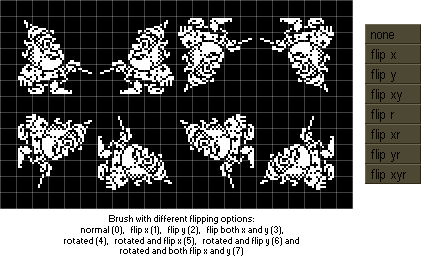
The flip property is used to flip the tile horizontal or vertical, or to rotate it 90 degrees.
The value of the flip property is an integer number that keeps the mentioned options on the first three bits.
You can browse it either from the properties dialog, or from the icon in the top toolbar.
The [F] and [R] keys will toggle those flipping options while placing brushes on the map.
Color
You already learned about the brush's color property and the colors dialog.
The value of this property is the hexadecimal code of the color (without 0x prefix).
Remember that color channels in a hexadecimal value are like 0xAARRGGBB
The transparency of a brush (alpha channel) can be picked in the color dialog
if the right mouse button is clicked on a color. Click the right mouse button on the white color to select an opaque alpha value.
You may wonder why most of the tiles in the default set are white.
That is because the white color perserves the color property of the tile when blended together on the screen.
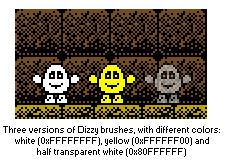
This means that if you have a white Dizzy tile, you can give it any color you like, using the color property.
A black color in the tile's image will deny all given colors in the color property, always showing as black on the screen.
See the above example, how Dizzy gets colored in yellow only on the "inside", keeping it's black border.
This behaviour goes for each color channel. So where the alpha channel in the tile is fully transparent (black),
the tile will remain fully transparent, no mater what color or alpha is given in the property color.
That's why the Dizzy brushes above are well masked.
Shader
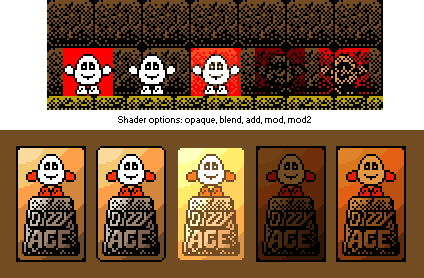
The shader property tells how the tile is blended with the existing background behind it.
The opaque value (0) will ignore the existing alpha channel of the tile and it will also ignore any alpha transparence
from the color property.
The blend value (1) will consider those alpha components and it will use them to mix the
tile with the background. It is the most common value for the shader property because it allows brushes to be
masked by the alpha channel from the tile.
The add value (2) will add the colors from the tile to the colors from the background and
it can be used to simulate lights since adding the color components will result in a more lighten color.
The mod value (3) will multiply the tile's colors to those from the background and
it can be used to simulate shadows. If you consider color components between 0.0 and 1.0, not from 0 to 255,
this makes sense because, multiplying two numbers that are less than 1.0, will only result in a smaller number that will
represent a darker color.
And finally, the mod2 value (4) can be used to simulate decal marks.
It is similar to the mod shader, but it perserve the lumination, by multiplying the result with 2.
You will have to experiment with these shaders yourself.
Scale
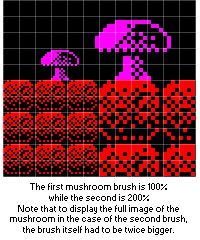
The scale property is used to resize the tile.
By default it is 100 percent meaning the tile will be presented at it's real size.
If set to 200 the tile will be twice bigger and if set to 50, it will be twice smaller.
Note that this doesn't refer to the brush's size, but to the tile that is repeated inside the brush rectangle,
so it will affect the number of repetitions. To simulate the scale of a brush, like a character that
eat something and grew twice bigger, you'll have to grow both the size of the brush and the scale of the tile.
If done during gameplay you might need to reposition the brush too since the position represents the top left corner
and such a resize will expand the brush down and to the right.
Conclusion
In this chapter you have learned about basic visual properties:
layer, position, size, tile, frame, mapping, flip, color, shader and scale.
Next we'll have a look at the rest of the brush properties.
|
|
|